Blu-ray Converter
About | Privacy Policy | Terms of Use | Support | Contact Us
Copyright © 2026 Tipard Studio. All Rights Reserved.

Windows

Rip your favorite Blu-ray/DVD movies or videos to popular formats

Powerful software to play Blu-ray/DVD videos and audio

Create Blu-ray disc/folder/ISO file with your own video

Backup/Copy your favorite Blu-ray to disc/folder/iso files
Mac

Rip your favorite Blu-ray/DVD movies or videos to popular formats on Mac

Powerful software to play Blu-ray and popular video formats on Mac
Windows

Rip DVD to any popular video format quickly of full quality

Create DVD from videos and burn video to DVD/Blu-ray freely

Copy DVD to DVD disc/folder/ISO files in a 1:1 ratio
Mac

Rip DVD to any popular video format quickly of full quality on Mac

Burn or author a DVD from videos with subtitles and chapters on Mac

Copy DVD to DVD disc/folder/ISO files in a 1:1 ratio on Mac
Windows

Rip DVD, convert 4K video, edit, and upscale videos to 5K/8K

Repair broken videos with high accuracy and support many formats

Convert any video to MP3, MP4, MOV, WAV, and other 350 formats

Upscale resolution, optimize brightness and remove video noise

The easiest tool to capture screen, game, audio, etc. with high quality

Convert any 2D video to 3D video and convert 3D to 2D video

Convert 4K video to 4K/1080P and common videos

Convert TS video to various popular video/audio formats
Mac

Rip DVD, convert 4K video, edit, and upscale videos to 5K/8K on Mac

Repair broken videos with high accuracy and support many formats on Mac

Convert any video to MP3, MP4, MOV, WAV, and other 350 formats on Mac

Upscale resolution, optimize brightness and remove video noise on Mac

The easiest tool to capture screen, game, audio, etc. with high quality on Mac

Convert any 2D video to 3D video and convert 3D to 2D video on Mac

Convert 4K video to 4K/1080P and common videos on Mac

Convert TS video to various popular video/audio formats on Mac
Desktop

Rip and convert DVDs to MP3 and support other audio formats

Reset Windows Admin and Standard user account password in seconds

Accurately Convert any PDF file to Word with OCR

Convert PDF to Word, Excel, HTML and Image with OCR
Online

Easily remove watermarks from many image file formats free online

Points:0
Redeem
User Guide
Tipard Blu-ray Converter is the best Blu-ray DVD ripper in Windows 11/10/8/7. It can rip your Blu-rays to lossless MKV with original 1080p or 4K quality and audio passthrough. You can also transcode your Blu-ray to H.265 or AV1 codec, which can compress the large Blu-ray files while keeping the best video quality. Check this guide to learn how to use Tipard Blu-ray converter to digitize your Blu-rays and DVDs.

Step 1 Load Blu-ray Disc/ISO/Folder
Insert your Blu-ray disc into your optical drive and connect it to your computer (maybe your computer has a built-in Blu-ray drive). Then, click the Load Blu-ray button to load the Blu-ray directly. You can also click the dropdown button to load a Blu-ray ISO image or BDMV folder on your computer. This Blu-ray ripper can also rip AVCHD media.
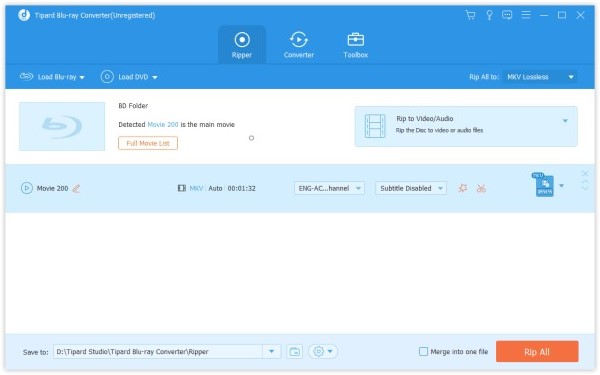
When your Blu-ray is loaded, you can choose to display the Main Movie or Full Title List:

Step 2 Choose an Output Media Format
Tipard Blu-ray Converter can convert your Blu-ray to digital video or ISO image. Click the dropdown button on the right side to select Rip to Video/Audio or Rip to Blu-ray ISO File.

It's very easy to rip Blu-ray to ISO - you just need to click the Rip All button. Therefore, the following steps will focus on ripping Blu-ray and DVDs to digital video and audio formats.
Step 3 Choose Output Video/Audio Format
Tipard Blu-ray Converter provides many video and audio output formats. There are two ways to choose an output format:
You can select from many video formats and presets. But you may need the MKV Lossless format for the best quality. The specs of Blu-ray: 1080p with H.264 codec, is still widely used for its excellent picture quality. Therefore, you can REMUX your Blu-ray to MKV format without re-encoding or changing the bitrate.
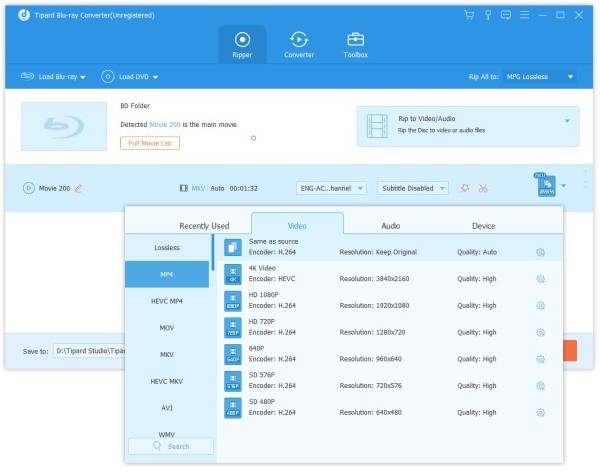
Still, you can re-encode your Blu-ray to other codec, like H.265 or AV1, to compress the large Blu-ray file size. For example, you can choose MP4 with an HEVC or AV1 codec. If you want other output format, just scroll down to select or use the search box in the top left corner.

How Can You Select AV1 Codec?
Since AV1 codec is not so popular as HEVC or H.264, it is not directly displayed on some formats' presets. To select it, you can click the Custom Profile button (with a gear icon) on the right side of each preset bar. Then, click the Encoder dropdown list to select AV1. Click the Create New button to save your custom profile.

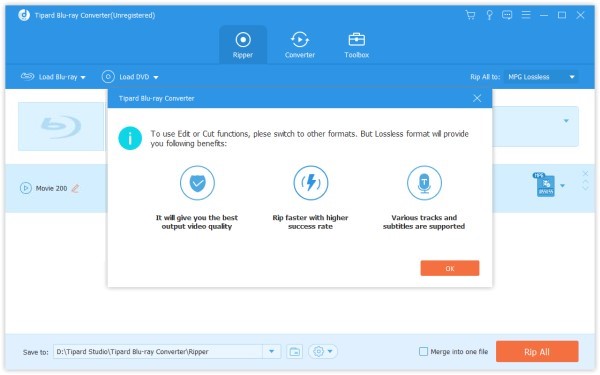
If you want to edit videos or cut them, you can click the Cut or Edit button. Click here to see what it can do for you.
Note: You should make sure the output format is not MKV Lossless when you edit the Blu-ray video.
Step 4 Adjust Audio and Subtitles
Blu-ray has multiple audio tracks and subtitle options. You can select your desired tracks. Moreover, Blu-ray has crisp audio quality, so many users want to keep the original audio tracks.
Click the Subtitle dropdown list, select Keep subtitle tracks, and select a desired subtitle track.

Click the Audio dropdown list to select a desired audio track.

Step 5 Start Ripping
Select a path for the files on the bottom bar. And then click the Rip All button on the main interface to start ripping your Blu-ray disc, ISO, or folder.
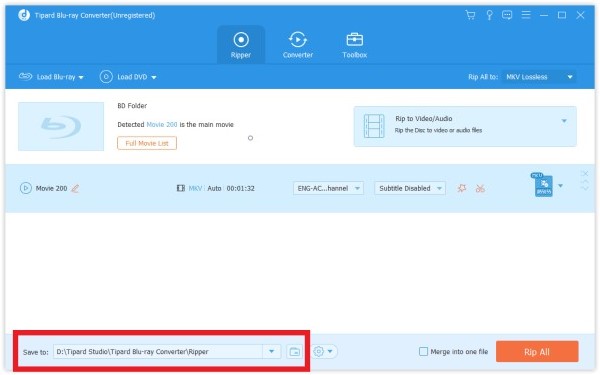
Note: If you want to merge them into one, select Merge into one file on the left of Rip All.
Tipard Blu-ray Converter can rip Blu-rays and DVDs, and the processes are quite the same. You can also check the user guide of Tipard DVD Ripper to learn more.
Step 1 Load DVD Disc/ISO/Folder
If you don't have any DVD ISO/folder on your computer, you need to insert a DVD disc first.
Just in the same Ripper option of the last part, click Load DVD on the top to import your DVD disc/ISO/folder. Or directly drag multiple video and audio files to this program.
If you want to see other small videos, click the Full Title List to find your target video.
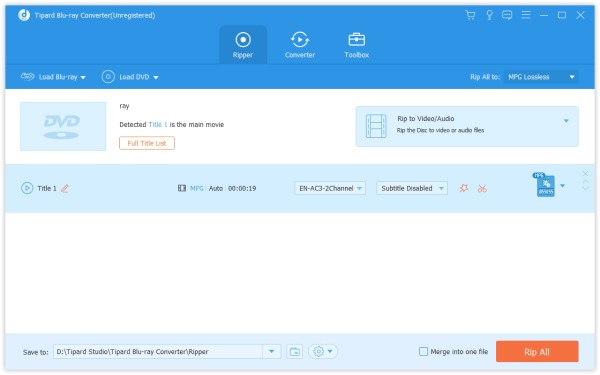
Step 2 Choose output video format
The default output format for this software is MPG Lossless which can preserve the lossless output quality. You can also select MKV Lossless, which can also keep the original video, audio, subtitle, chapters, and more.
If you want to rip DVD to digital formats, just click the Output Format dropdown button to select the output format you want.
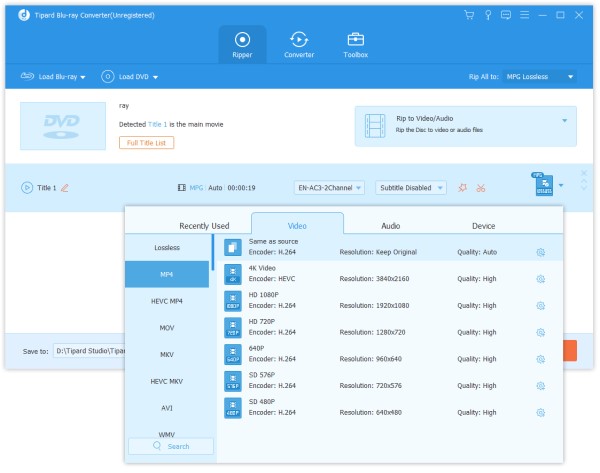
If you want to edit videos or cut them, you can click the Cut or Edit button. Click here to see what it can do for you.
Note: You should make sure the output format is not MPG Lossless or MKV Lossless when you edit the DVD video.
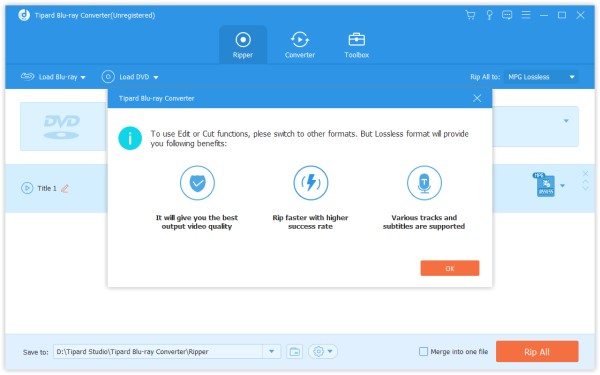
Step 3 Start Ripping
Select a path for the files on the bottom bar. And then click the Rip All button on the main interface to start ripping.
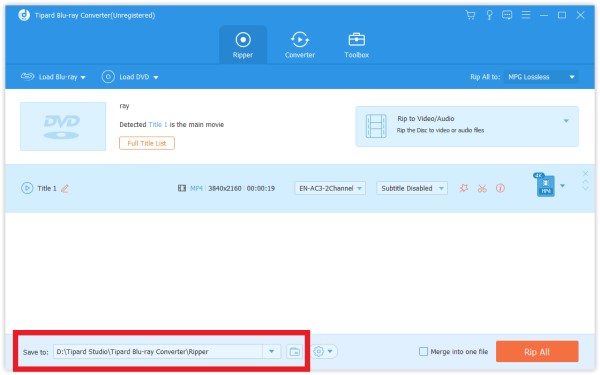
Note: If you want to merge them into one, tap Merge into one file on the left of Rip All.
Step 1 Install and launch program
Install and launch Blu-ray Converter on your computer. Click the Converter option on the top bar.
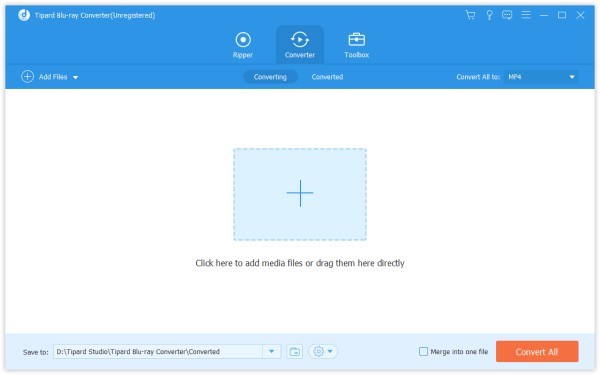
Step 2 Add video/Audio files
Click Add Files and select the Add Files or Add Folders to add video files. Or you can directly drag multiple video and audio files to this program.
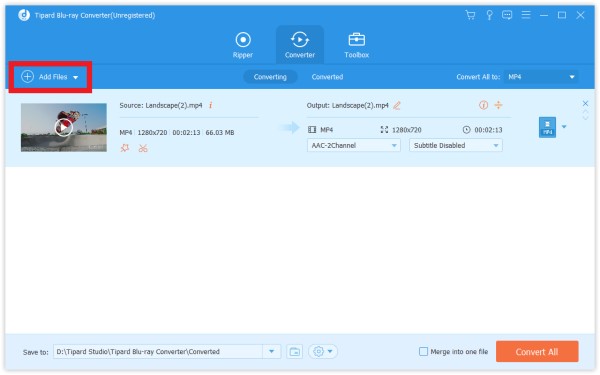
After adding files, you can see its information on the interface, like the original format, the screen size and the time length.
You can click the video to play it. On the playing interface, you can also take snapshot and edit the video by clicking the Snapshot button.
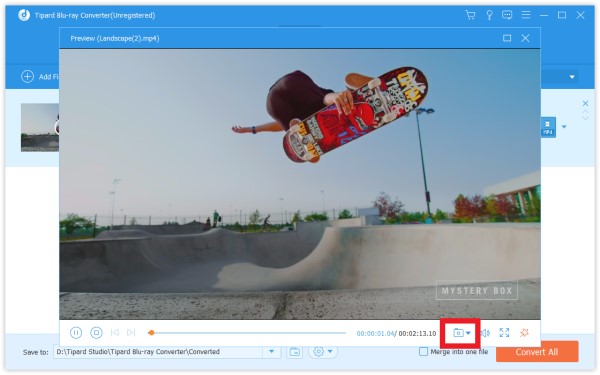
If you want to edit videos or cut them, you can click the Cut or Edit button. Click here to see what you can get.
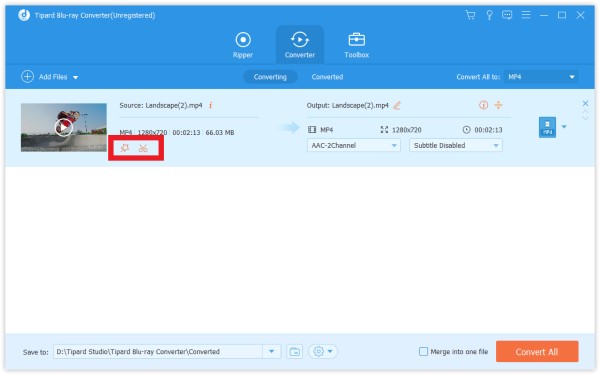
Step 3 Choose output format
Click the Output Format dropdown button. Then, you can see a list of formats. Choose one of them as the target format.

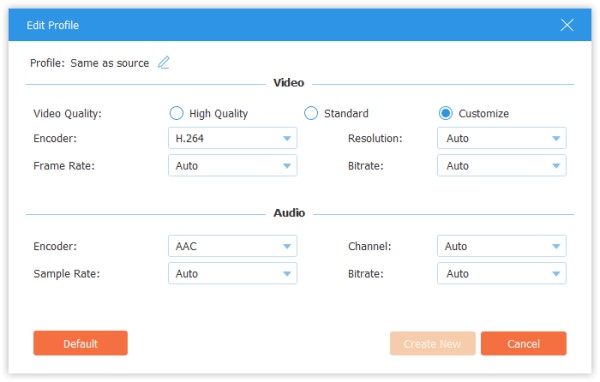
If you want to change the format settings, you can click the Gear button on the right to custom profile. In the pop-up-window, you can change settings as follows.
Video: Quality, Encoder, Resolution, Frame Rate and Bitrate.
Audio: Encoder, Channel, Sample Rate and Bitrate.
Step 4 Start converting
Select a path for the converted files on the bottom bar. And then click the Convert All button on the main interface to start converting on your computer.
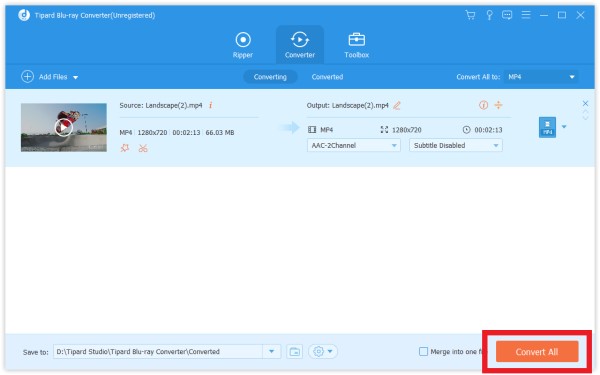
Note: If you want to merge them into one, select Merge into one file on the left of Convert All.
Step 1 Select a video file and click the Cut button

Step 2 To cut your wanted parts of the video, you can drag the clipper on the progress bar or enter the start and end time directly on the bottom Duration bar. The part you chose is what will be left.
If you want more segments in the same video, click Add Segment on the bottom of the segment list and a same video will added. Choose another wanted part in the same way.
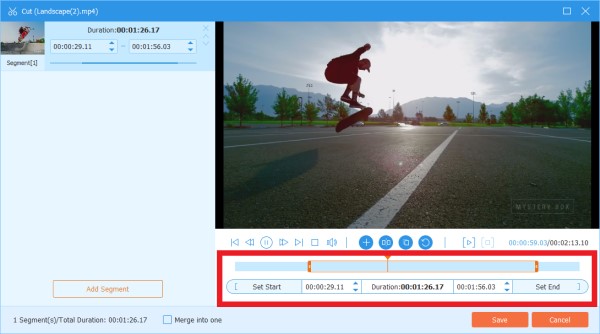
Step 3 After you make all right, you can click Save. If you want to merge them into one, check on Merge into one on the bottom left of the Cut window.
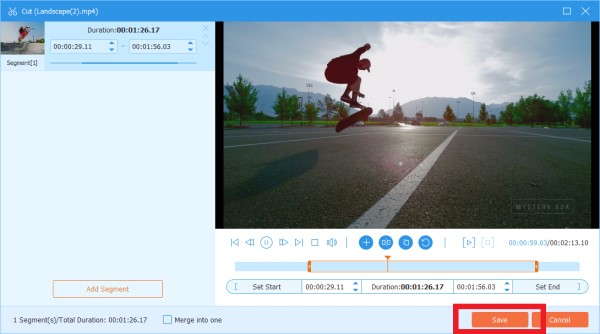
Step 4 Now you are back to the main interface. Preview the video by clicking the thumbnail. If that's just what you want, click Convert All.
Step 1 Click the Edit button. The first interface of the pop-up window is the Rotate & Crop option. And you can see other editing features on the besides in this window.
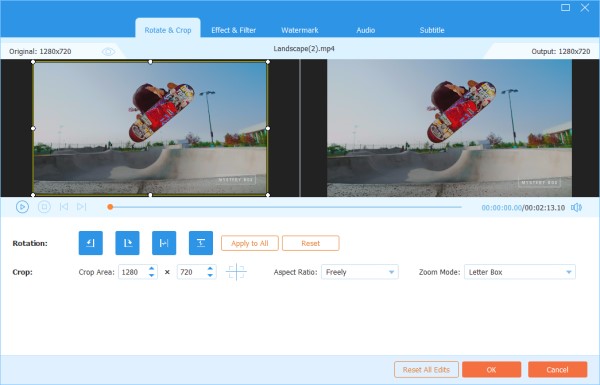
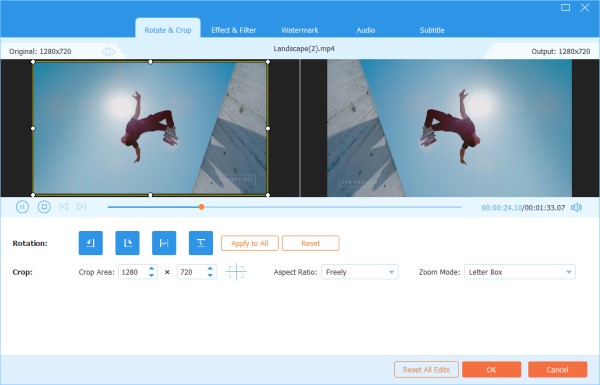
Step 2 Here you can flip video vertically and horizontally, rotate 90 degrees, rotate 180 degrees or rotate 270 degrees. Then, you can check the result in the preview.
Step 3 Below the Rotate option is the Crop option. There are several types in Aspect Ratio, like 16:9, 4:3, 1:1 and 9:16. It can help you quickly get the size you want.
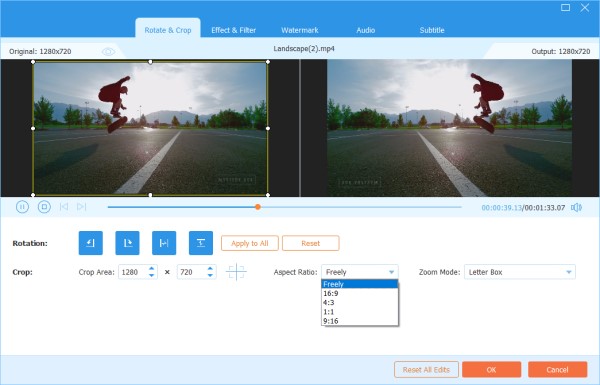
If you have other size needs, you can select Freely in Aspect Ratio first, then input number in Crop Area to set the size. Dragging the frame of the left playing screen is also OK. If you only want the center screen, click Cross button after setting the size and it will help you put the cropped screen in the center.
Besides Ratio, you can also select the right Zoom Mode to get the best effect.
Full Mode: Make the selected screen become the biggest size, which would stretch the screen.
Letter Box: Add black edges up and down.
Pan & Scan: Make the screen size to 16:9. But it would not show left and right edges in 16:9 or up and down in other size.
It is up to your needs.
Step 4 Click the OK button to save the changes.
Step 1 Find Effect & Filter in the Edit window. You can adjust brightness, contrast, saturation, hue and select deinterlacing as you need. Besides, you can choose a filter to beautify your video.
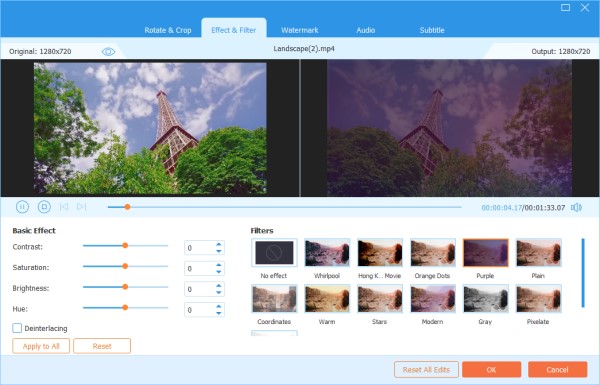
Step 2 Click the OK button to save the changes.
Step 1 Find the Watermark option in the Edit window. If you want to add a text watermark, check Text and enter the text to the blank. You can adjust the text fonts, colors, writing system and size. Then move the text watermark by dragging or setting size.
Furthermore, you also can rotate text and set opacity.
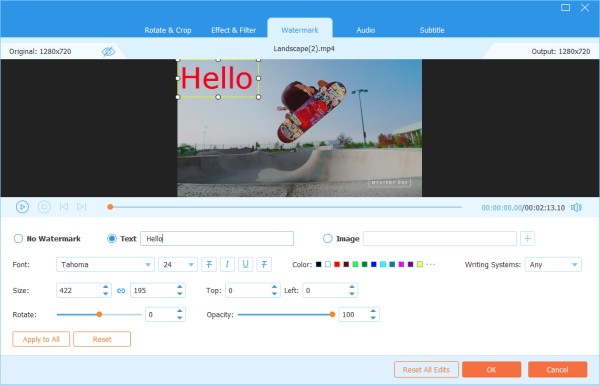
If you want to add an image watermark, check image and click the Add button to select an image. And then adjust the size and place it on the screen. You can also rotate the image and set opacity.
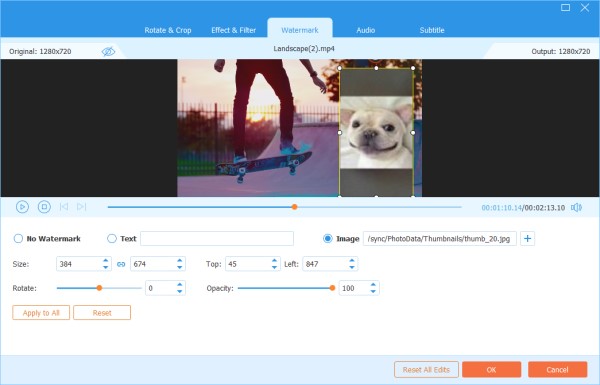
Step 2 Click the OK button to save your settings.
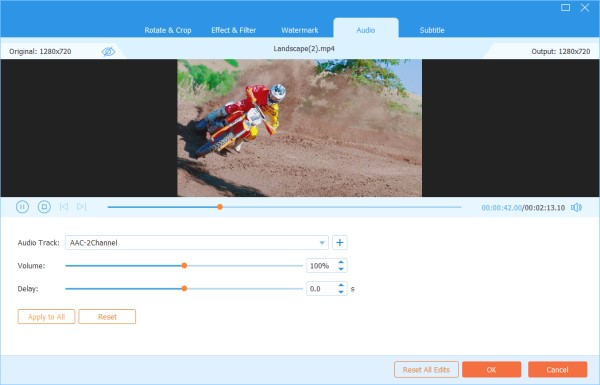
Step 1 Find the Audio option in the Edit window. Click the Add button besides the Audio Track bar to find the audio track you want to add. You can adjust the audio volume and change the delay time to decide when to play audio track.
Step 2 Click the OK button to save your settings.
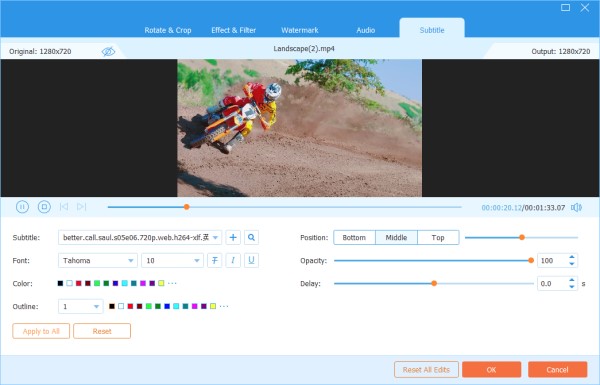
Step 1 Find the Subtitle option in the Edit window. Click the Subtitle dropdown button. Here, you can add external subtitle file (*.srt; *.ssa; *.ass) from your computer. After that, you can adjust the position, font, color, opacity, delay time and outline. You can also disable subtitle or export the subtitle file from the video.
Step 2 Click OK to save the adjustments.
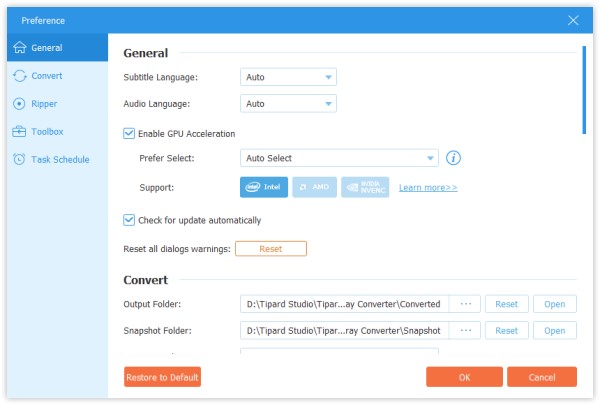
When you are using converter function or ripper function, you can click the Gear button on the bottom on the interface. This is the button of Preferences.
There are five options in it.
In General option, you can set subtitle language, audio language, GPU acceleration and update settings.
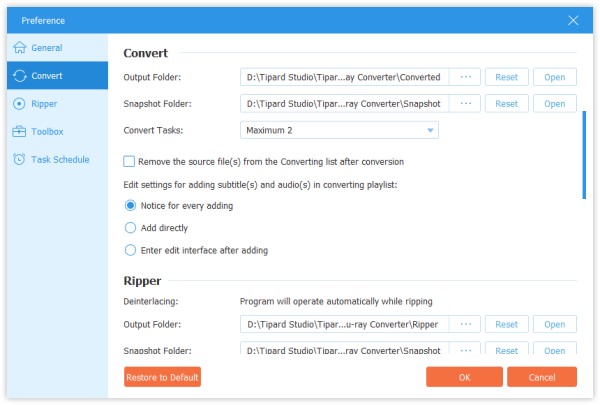
In Convert option, you can set output folder, snapshot folder, convert tasks, etc.
In Ripper option, you can set output folder, snapshot folder, convert tasks, etc.
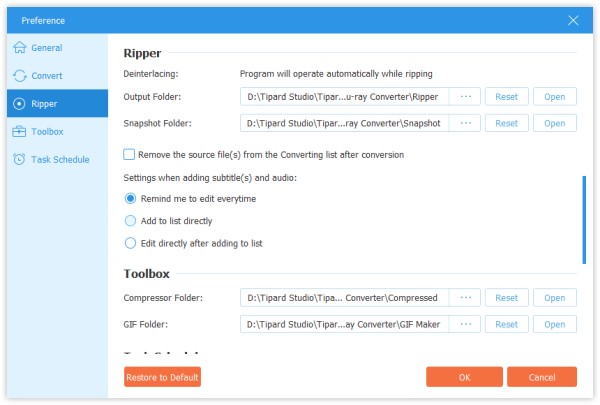
In Toolkit option, you can set the saving path for compressed files and GIF files.
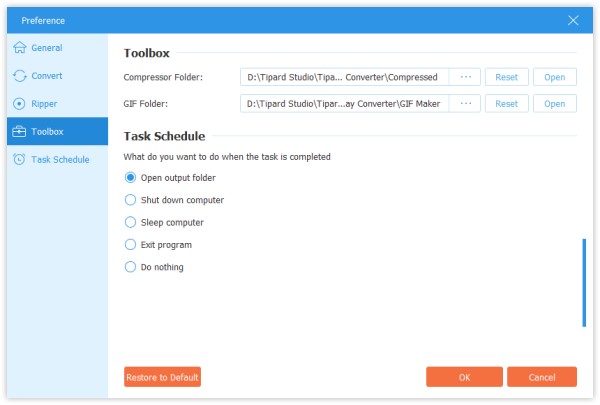
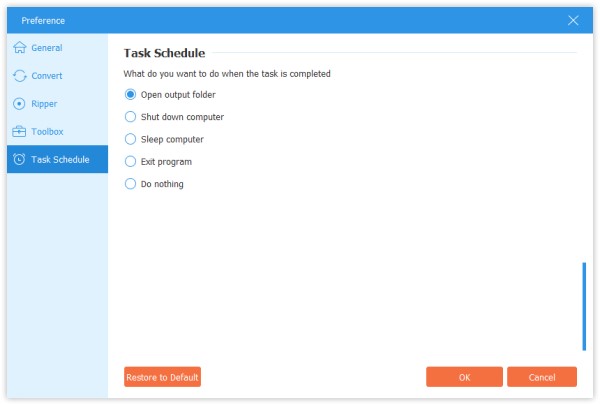
In Task Schedule option, you can choose the action when the task is completed.
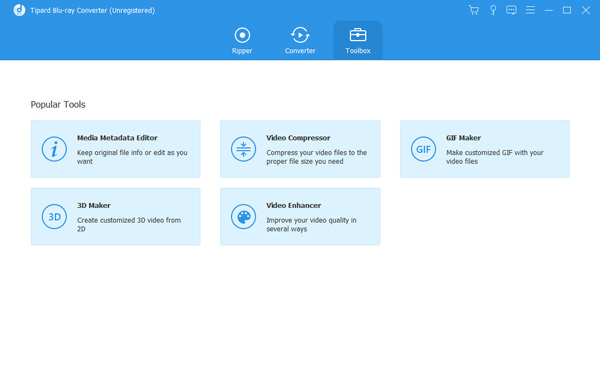
Click More Tools on the top and find Media Metadata Editor. And there are also Video Compressor, GIF Maker, 3D Maker, and Video Enhancer.
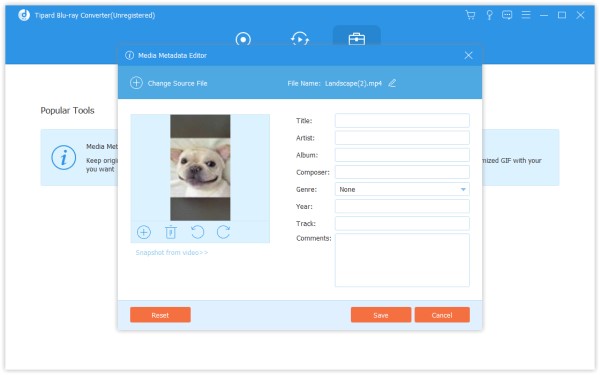
Step 1 Click Media Metadata Editor and add a file in supported format, such as MP4, M4A, M4R, M4P, 3G2, M4V, MOV, MP3, WMA, ASF, WMV, and AVI.
Then you can edit the cover, file name, cover, artist, album, composer, genre, year, track, comments.
Step 2 Click the Save button to save the metadata.
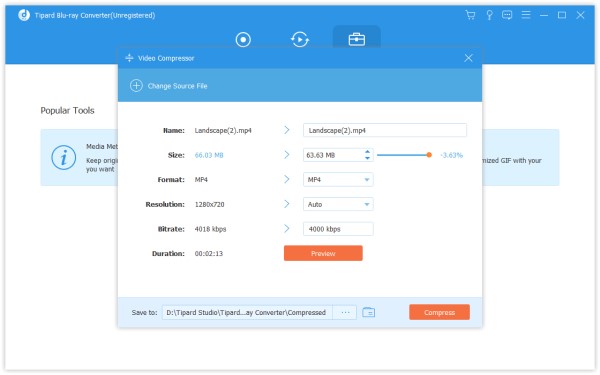
Step 1 Find Video Compressor in Toolkit. Click it and add a video to compress. After adding files, you can change the size, name, format, resolution, bitrate of the target file.
Step 2 Then set the path to save your compressed file, and click the Compress button.
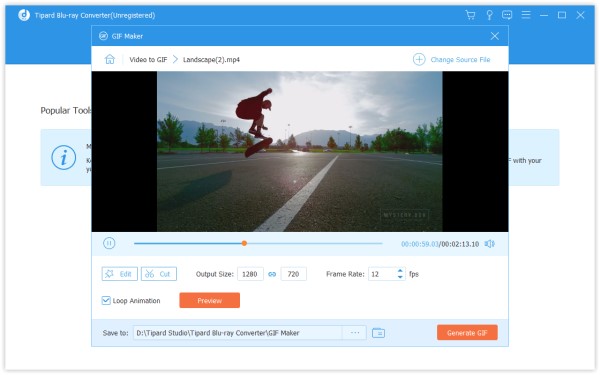
Step 1 Find GIF Maker in Toolkit. Click it and add a video to GIF Maker. As you see, you can edit the video with various features, such as Rotate & Crop, Effect & Filter, Watermark, Audio, and Subtitle.
Or cut the video and save the part you want to make a GIF. And you also can set the output screen size and Frame Rate.
Step 2 Click Generate GIF to create your own GIF.
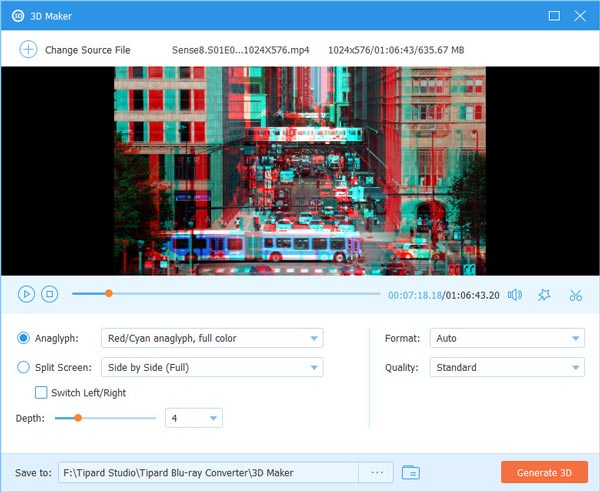
Step 1 Click on the 3D Maker option and add the video you want to convert to a 3D movie. Then you are able to add or adjust various 3D effects as you like, including anaglyph changing, screen splitting, layer switching, and depth adjusting. You can wear a pair of 3D glasses to see if the effect is what you want while setting.
Step 2 Click on the Generate 3D button to make your own 3D movie.
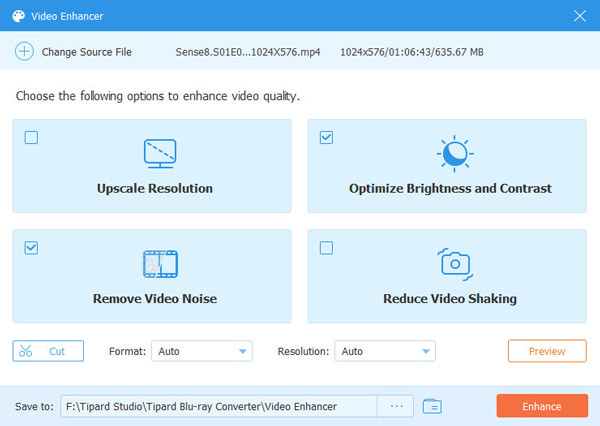
Step 1 Select Video Enhancer when you have a video whose quality needs to be improved. Add the video to this video enhancer. Usually, you can choose Upscale Resolution to get superb video quality. You can also optimize the brightness & contrast, remove video noise, and reduce video shaking according to your needs. You are allowed to preview the refined video before saving it to your computer.
Step 2 Choose a folder to save your video and then click the Enhance button.