




About | Privacy Policy | Terms of Use | Support | Contact Us
Copyright © 2026 Tipard Studio. All Rights Reserved.

 DVD Ripper for Mac
3.9M+ Discs
Ripped per year
10+ Updates
per year (entirely optional)
7M Users
from 160+ countries
18 Years
of proven quality
Tipard DVD Ripper for Mac is designed to work smoothly on both Apple Silicon and Intel-based Mac computers. Whether you use a MacBook Air, MacBook Pro, iMac, Mac mini, or Mac Pro, you can easily convert your DVD collection into digital videos.

Rip Movie and Music DVDs
Tipard DVD Ripper for Mac can rip all types of DVDs, including standard DVD-Video discs as well as old DVD collections. It lets you easily digitize your movie DVDs, music DVDs, and archived discs into modern video formats for convenient playback and storage.
You can also easily rip your concert DVD, training DVD, sports DVD, documentary DVD, and more, with the original resolution or 1080p/4K.
Rip Encrypted DVDs
Tipard DVD Ripper for Mac can bypass various DVD copy protections and extract video content from protected discs. It supports common DVD protections such as CSS, APS, ARccOS, and 99-Title protection, making it easier to back up and convert your DVD content.
Note: You can only rip encrypted DVDs following your local laws. Tipard Studio recommends that you rip DVDs for legal uses.
Recover and Rip Damaged DVD Discs
Don't let scratches, dust, fingerprints, or other physical damage make your DVD content inaccessible. Tipard DVD Ripper for Mac can read and extract available content from damaged or scratched DVDs, helping you recover movies, home videos, music, and other files from discs that may have playback issues. Save the recovered content as digital video or audio files for easier playback and backup.
Rip Region-Locked DVDs
Tipard DVD Ripper for Mac can bypass DVD region restrictions and rip region-locked DVDs from different parts of the world. It lets you convert DVD movies and videos to region-free digital files for playback on your preferred devices.
This Mac DVD ripper can also remove region codes from DVDs and rip them to DVD ISO images or VIDEO_TS folders for easy playback and storage.
Rip DVD ISO and VIDEO_TS
Tipard DVD Ripper for Mac can rip DVD content directly from ISO image files and VIDEO_TS folders without requiring a physical DVD disc. It can analyze the DVD structure, identify movies, episodes, chapters, audio tracks, and subtitles, and let you select the content you want to rip. This makes it convenient to convert backed-up DVD content stored on your computer or external drives into digital video and audio files.
Rip Customized & Burned DVDs
Tipard DVD Ripper for Mac can rip customized DVDs and personally burned DVD-Video discs created from personal videos, downloaded footage, or other custom content. Unlike professionally authored DVDs, homemade and burned DVDs may use different video codecs, resolutions, bitrates, aspect ratios, or authoring structures, which can sometimes cause compatibility or playback issues.
This makes it easier to preserve older personal recordings and convert custom DVD content for playback on modern computers, phones, tablets, and other devices.
Although DVDs have legacy video encoders and low resolution, they still have large media file sizes. Tipard DVD Ripper for Mac can compress DVDs with modern video encoders, like H.265/H.264, upscale DVDs to 1080p and 4K, and adjust dimensions for playback on Mac, Apple TV, iPhone, and other screens.
Compress DVDs to Save Storage Space
If you want to store a DVD movie on your iPhone or iPad, Tipard DVD Ripper for Mac can highly compress DVDs to a smaller size for mobile storage. For example, it can compress a dual-layered 8.5 GB DVD to a 1.5 GB video with the H.265/HEVC codec in MP4 or MOV.
Upscale DVD for Clear Playback on Mac
Standard DVD resolution (480P) often looks pixelated on your Mac's high-density Retina displays and 4K Pro Display XDRs. Tipard DVD Ripper for Mac bridges this gap using advanced Neural-Network-based upscaling.
Customize DVD for Modern Screens
Different devices have different playback requirements. Tipard DVD Ripper for Mac lets you adjust essential video and audio parameters to create videos that perfectly match your preferred playback environment.


Tipard DVD Ripper for Mac can convert any DVD to many video and audio formats, including MOV (QuickTime), MP4, MKV, etc. and upgrade DVDs to modern video configurations, including 1080P and 4K video resolution, H.264 and HEVC codecs, and AC3 codec with 5.1 channels.
Convert DVD to Video
Format: MP4, MOV (QuickTime), MKV, WebM, WMV, M4V, MPEG, and 500+ formats.
Codec: ProRes, H.265, H.264, AV1, MPEG-4, VP9, VP8, MPEG-2, and more.
1:1 Backup DVD
DVD ISO images and DVD folder (VIDEO_TS and AUDIO_TS in music DVD) with original DVD structure, streams, menus, and extras.

Extract or Convert Audio
Original: LPCM, AC-3, DTS, MPEG-1 Audio Layer II, MPEG-2 Audio.
Output: MP3, FLAC, ALAC, AAC, AC3, iTunes, WAV, etc.
Remux DVD Losslessly
Lossless MKV and MPG formats that keep original video quality and audio/subtitle tracks.
Though it's a professional DVD ripping tool, Tipard DVD Ripper for Mac is very easy to use even if you are a beginner. With the user-friendly on-screen guide, you can easily load your DVDs, edit, and manage titles, chapters, audio, and subtitle tracks. Moreover, it utilizes Apple VideoToolbox to speed up the ripping process.
Optimize Output DVD Video Files Easily
Tipard DVD Ripper for Mac intelligently analyzes your DVD structure and displays all titles and chapters clearly. You can preview, select, edit, and manage specific DVD content before conversion.

Manage Titles and Chapters
Tipard DVD Ripper for Mac analyzes your DVD structure and displays all titles and chapters clearly. You can preview, select, and manage specific DVD content.

Adjust Subtitles and Audio Tracks
Tipard DVD Ripper for Mac lets you change the audio and subtitle tracks, and add your local audio and subtitle files, and extract selected subtitle files from your DVD.

Customize DVD Movie Metadata
Tipard DVD Ripper for Mac features a metadata editor tool that can organize your ripped DVD collection with customized metadata.

Edit DVD Videos Before Conversion
You can edit your DVD videos before exporting. Trim unwanted parts, crop black bars, rotate incorrect orientations, and adjust the video appearance with built-in editing tools.
Tipard DVD Ripper for Mac is engineered to harness the full power of M1 through M5 Pro and Max chips. By leveraging native hardware acceleration and Neural Engine integration, it delivers up to 30× faster ripping speeds, transforming your physical DVD collection into high-performance digital archives in mere minutes.
Up to
30×
Faster ripping speed than competitors.
Support
Apple
M1-M5 and legacy Intel chips for decoding and encoding.
About
5 Mins
Spent on ripping a dual-layered DVD.
Smooth
AI
Enhancement with low CPU usage.
Scenario: John had dozens of old family DVDs stored for years. He wanted to digitize his DVD collection and save the videos on his MacBook for easy playback and backup, but traditional DVD conversion tools took too long and caused high battery consumption during long encoding sessions.
Solution: He chose Tipard DVD Ripper for Mac, and a 2-hour DVD movie was ripped in about 5 minutes while maintaining original video quality. The process ran smoothly with low CPU usage and consumed minimal battery power, allowing him to convert multiple discs without keeping his Mac plugged in.
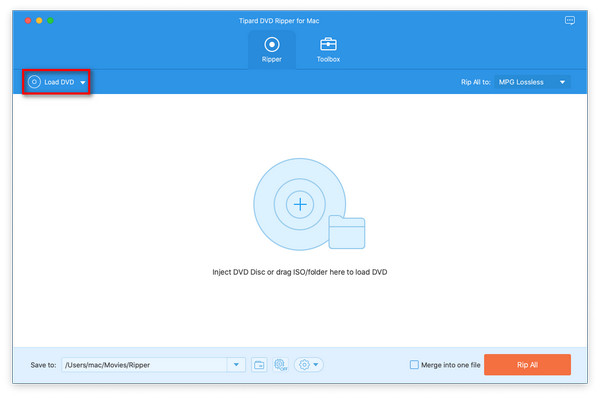
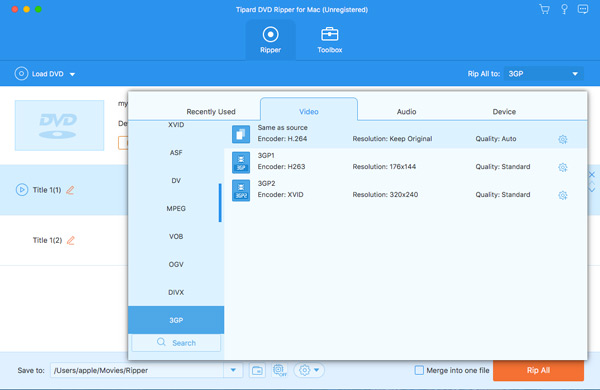
Tipard DVD Ripper for Mac is a user-friendly DVD ripping software for Mac. With its clean UI and simple workflow, you can rip DVDs to digital videos on Mac without hassle. Follow the easy guide below to rip your DVDs.

1
Load DVD
Click the Load DVD button to load your DVD. You can also import DVD ISO or a folder.
2
Choose Output Format
You can rip the DVD to ISO or folder. You can also choose a desired video format.
3
Rip DVD
Click Rip All button to rip DVD to a video, or ISO image, or DVD folder.

Tipard DVD Ripper for Mac is a fast, easy-to-use program that delivers high-quality video and audio with advanced encoding technology and Hyper-Threading support.

Tipard DVD Ripper for Mac helps DVD collectors easily convert DVDs to digital formats like MP4 and MKV for convenient playback and storage.

Tipard DVD Ripper for Mac lets users select DVD titles and adjust output settings for consistent encoding and easy comparison across discs.
J
Justin
Amateur
"Great DVD ripper for Mac! It supports many output formats, offers fast ripping speeds, and preserves excellent video quality. I'll definitely keep it on my MacBook."
S
Samuel
Student
"Tipard DVD Ripper for Mac has a clean interface, stable performance, and fast ripping speeds. It makes ripping DVDs quick and easy."
G
Geraldine
Videophile
"Tipard DVD Ripper for Mac can upscale DVDs to 4K, 5K, and even 8K. My DVD movies now look great on my MacBook's high-resolution screen!"
D
Daniel
Movie Collector
"Tipard DVD Ripper for Mac is simple to use and works smoothly. I can convert my DVD collection to MP4 and enjoy my favorite movies on different devices."
E
Emily
Media Enthusiast
"I love how quickly it rips my DVDs while keeping the video and audio quality high. It saves me a lot of time when digitizing my movie collection."
A
Alex
Mac User
"I can easily convert DVDs to MKV and other digital formats for playback on my MacBook. The straightforward interface makes the whole process hassle-free."
Does it support the latest macOS and Apple Silicon?
Yes. Tipard DVD Ripper for Mac is fully compatible with the latest macOS (including Tahoe and Sequoia). It runs natively on Apple Silicon (M5, M5 Pro, and M5 Max) and Intel-based legacy Macs, ensuring maximum stability and performance.
How fast is the DVD ripping process on Mac?
By leveraging Hyper-Threading and Hardware Acceleration (VideoToolbox), our software can rip a full-length DVD in as little as 5 to 10 minutes, depending on your hardware and output settings.
Is Tipard DVD Ripper for Mac safe to use?
Yes. Tipard DVD Ripper for Mac is 100% clean and safe. It won't harm or steal your data, privacy, discs, Mac, system, etc.
Does Tipard DVD Ripper for Mac leave a watermark?
No. Tipard DVD Ripper for Mac won't leave a watermark on the ripped videos.
What's the best format to rip a DVD on macOS?
On macOS, MOV and ProRes are most favored because they are more compatible with the Apple ecosystem than MP4 or MKV.
Rip protected DVDs, DVD folders, and ISO files to digital video formats on your Mac with ease.
Windows 11/10/8.1/8/7
30-Day Money Back Guarantee
macOS 10.12 or above
30-Day Money Back Guarantee