

Unlocking your Windows computer without a password is a lifesaver and a security necessity. This article seeks to uncover the finest Windows password unlocker tools available. Whether you've forgotten your password or want to enhance your system's overall security, these tools hold the key. They offer solutions to your needs, from intuitive interfaces to potent password recovery. Picture a scenario: you're locked out of your work computer and urgently need access to essential files. The answer lies within the following sections, where we unveil the top five Windows password unlocker tools. Take advantage of our recommendations to regain control of your Windows computer today.
Part 1. Five Best Windows Password Software
1. Tipard Windows Password Reset
Compatibility: Windows 11/10/8/7/XP/Vista
Best for: Beginners who need a simple and quick Windows password reset solution.
Tipard Windows Password Reset is a versatile tool dedicated to regain access to your computer when you forgot the Windows password. This powerful software can remove or reset administrator, local, and standard user account passwords quickly and efficiently.
It provides Standard, Platinum, and Ultimate editions for different user needs. Whether you are a home user or an IT professional, you can choose a suitable version based on your requirements.
- Simple and intuitive interface which is easy for beginners.
- Remove forgotten Windows password without personal data loss.
- Create bootable CD/DVD or USB password reset media.
- Create a new admin account without administrator access.
- You need a paid license for full password recovery.
2. Lazesoft Recover My Password
Compatibility: Windows 11/10/8/7/XP/Vista
Best for: Users who want a free password and data recovery option.
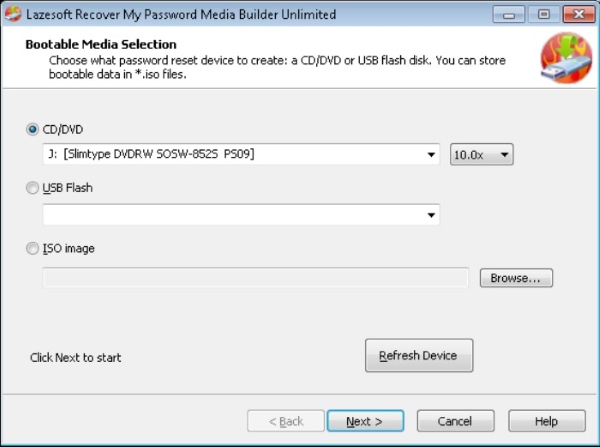
Lazesoft Recover My Password is suitable for users who forget their Windows login passwords. Users can create a bootable recovery disk or USB drive and use it to reset Windows passwords on PC. The software offers a free version which includes basic password recovery features for personal use. However, you will have to purchase a paid license if you plan to use it for business purposes.
- It aids in product key retrieval from unbootable Windows installations. That way, the recovery of crucial software licenses will be convenient.
- The app supports both UEFI boot mode and BIOS boot mode.
- It offers free technical support, assisting and guiding users facing issues or questions during the process.
- The requirement of separate boot media for each OS can be unmanageable, resulting in added complexity during password recovery.
3. John the Ripper
Compatibility: Windows/macOS/Linux
Best for: Advanced users or IT professionals who are familiar with command-line tools.
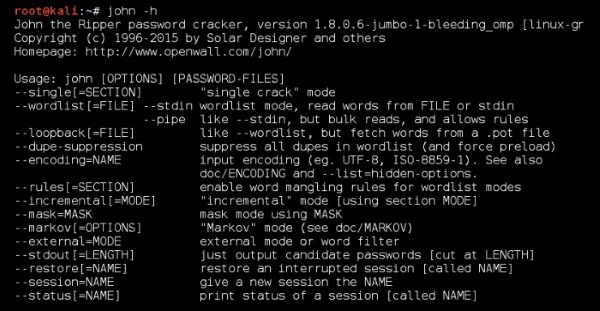
John the Ripper is an open-source and free password unlocker for Windows, Mac, and Linux OS. It boasts an impressive array of wordlists, meticulously compiled from numerous public domain sources, encompassing diverse languages and common passwords. With collections of over 20 human languages, including Afrikaans, Czech, Croatian, and English, it caters to a global user base. What sets John the Ripper apart is its versatility. It supports hundreds of hash and cipher types, making it a rich tool for unlocking many password-protected systems and files.
- It has comprehensive resources and a robust support system.
- John the Ripper boasts a small download size for users with limited bandwidth or storage constraints.
- Users can join a mailing list to seek help and ask queries
- The tool is exclusively command-line based, which may pose a usability challenge for those who like a graphical user interface.
4. PCUnlocker
Compatibility: Windows 11/10/8/7/XP/Vista
Best for: Users who need advanced password recovery features.
PCUnlocker is a bootable utility designed to fix password issues on Windows. With the ability to reset passwords to Directory Services Restore Mode (DSRM) accounts, it offers comprehensive solutions for password reset. Whether you prefer using a bootable CD, USB drive, or even a network connection via PXE, PCUnlocker provides flexibility. So you can retrieve access to your Windows computer without the hassle of password-related barriers. It's an adaptable and user-friendly tool for addressing password recovery needs on Windows or how to reset a computer.
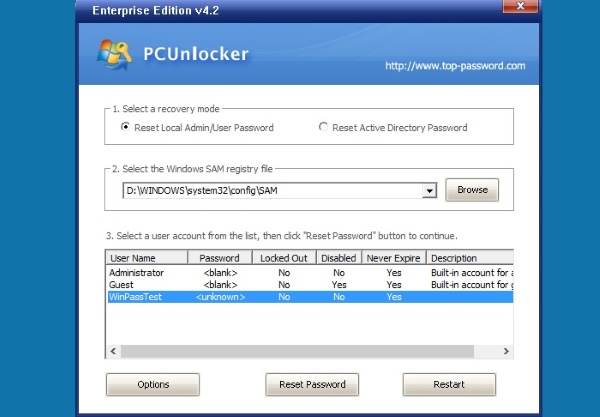
- PCUnlocker can create a new local admin account where Windows cannot load the user profile of the existing account.
- It can disable "Force Smart Card Login" feature.
- It is compatible with various hard drive types. RAID, SCSI, SATA, and NVMe, to name a few.
- If your drive is protected by BitLocker encryption, PCUnlocker cannot access the password files without the BitLocker recovery key.
5. iSunshare Windows Password Genius
Compatibility: Windows 11/10/8/7/XP/Vista
Best for: Users who want to unlock Windows 7 password for free.
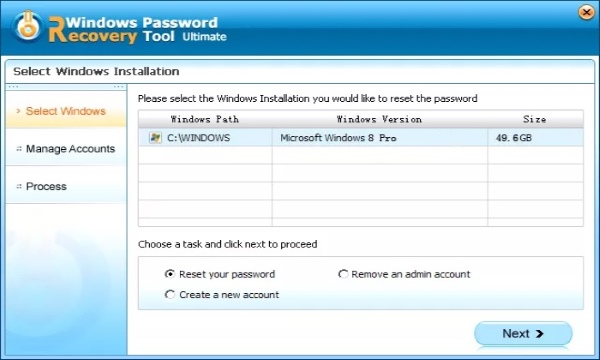
iSunshare Windows Password Genius is a powerful solution for regaining access to your Windows system. It supports recovering Microsoft account passwords, admin passwords, and domain user passwords safely. This tool offers four professional password recovery modes: Standard, Professional, Advanced, and Raid. In addition, the tool offers a free option for resetting Windows 7 login passwords.
- The app preserves the integrity of your Windows computer's data and system configuration.
- It can easily remove or reset your user account's Windows local guest password.
- The software generates a fresh domain admin account in case of a security breach on your prior one.
- Accessing all the advanced features requires upgrading to the ultimate version with a payment.
Part 2. How to Reset Your Forgotten Windows Password
In the following steps, we will use Tipard Windows Password Reset as an example to show how to reset Windows password by creating a bootable reset disk or USB drive. The steps are similar for most bootable password unlock tools, so you can apply the same logic to other unlockers mentioned above.
Step 1 Download the Windows Password Unlocker
Get the software installer using the Free Download button below on an accessible computer. Then, follow the command on the prompts to download the software effortlessly. After the installation process, the software will resurface on your computer screen.
Step 2 Choose a Reset Mode
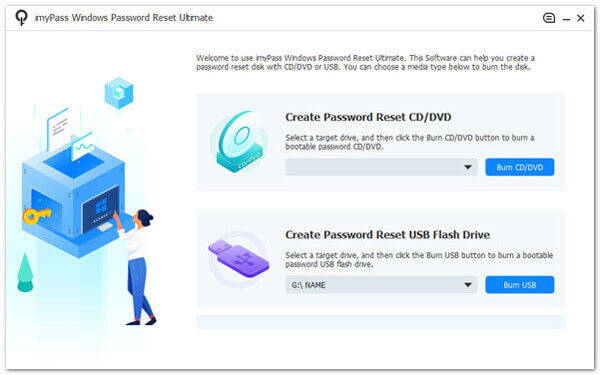
Next, pick your preferred mode for the process. If you would like to create a password reset on a CD or DVD, hit the Burn CD/DVD button. Alternatively, you can click the Burn USB button to create a password reset on a USB flash drive.
Step 3 Setup the Computer Boot
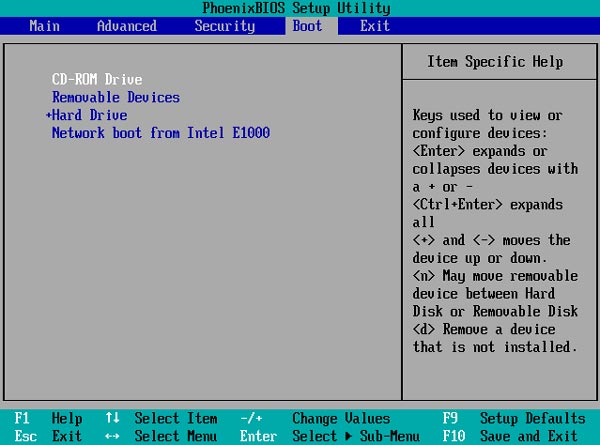
After that, insert the CD/DVD or USB used for the password reset on the locked Windows computer. Then, you will access the PhoenixBIOS Setup Utility window. Pick the Hard Drive if you use a USB or the CD-ROM Drive if you use a CD/DVD.
Step 4 Select Account to Reset Password
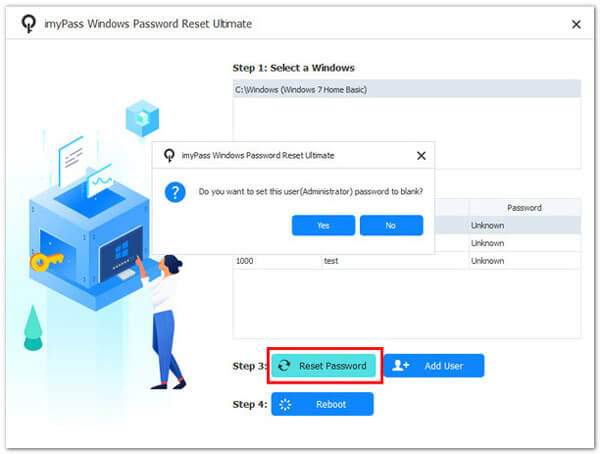
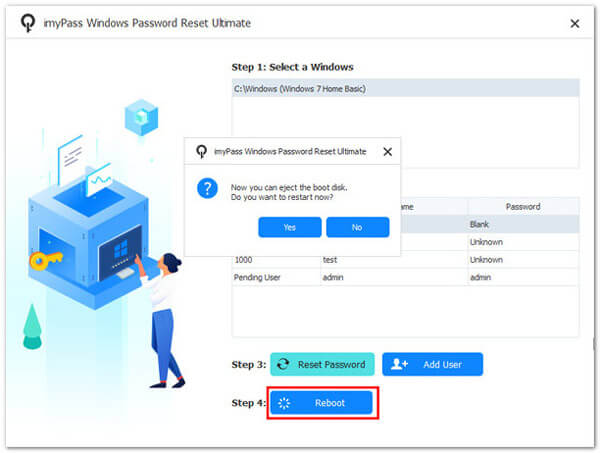
Once done, the list of Windows accounts will appear. Select an account where you want to reset the password and click Reset Password. Then, a pop-out notification will appear. Hit the OK button on the message to apply the process.
Step 5 Finalize the Windows Unlock Process
Finally, remove the connected password reset device from the computer and reboot your computer. Once your device opens again, it is unlocked, allowing you to access all your files and data.
Part 3. FAQs About Windows Password Unlocker
What is a Windows password unlocker, and why do I need one?
A Windows password unlocker is designed to help you retrieve access to your Windows. This applies when you've forgotten your password. It would help if you had it to avoid data loss, system reinstallation, or service calls for password-related issues.
How does a Windows password unlocker work?
These tools create a bootable media (CD, USB) that allows you to reset or remove the password associated with your Windows account. This will grant you access without reformatting or reinstalling the operating system.
Are Windows password unlockers safe to use?
Windows password unlockers are generally safe and legitimate when obtained from reputable sources. They are intended for password recovery purposes. However, always exercise caution and use trusted sources to avoid potential security risks.
Can I use a Windows password unlocker on any Windows version?
Most tools are designed to work with a wide range of Windows versions. Windows 7, 8, 10, and, in some cases, Windows Server editions are some of the supported OS versions. It's essential to check compatibility with your specific version.
What should I do if I forget my Windows password?
If you forget your Windows password, a Windows password unlocker can be a valuable solution. Alternatively, you can utilize password hints and security questions (if configured). Also, you can seek help from Microsoft's official support channels for account recovery.
Conclusion
Windows password unlockers can help you regain access to locked computers without reinstalling or formatting the operating system. Whether you forgot your Windows login password or need a Windows password unlocker free option, the 5 tools offer different solutions for various situations, so you can reset your Windows 10 password efficiently!
More Reading


About the Author

 Click here to join the discussion and share your comments
 Windows Password Reset