

 Windows Password Reset
 - Part 1. Can You Show the Administrator Password with CMD?
- Part 2. How to Reset Administrator Password with Administrator Privileges
- Part 3. How to Change Administrator Password from a Guest Account
- Part 4. Bonus Tip: Reset Administrator Password with Advanced Software
- Part 5. FAQs About Showing Administrator Password
Many users search for ways to show administrator passwords using CMD when they forget their Windows login credentials. While Command Prompt (CMD) can help reset Windows administrator accounts, it cannot display existing passwords directly. This comprehensive article introduces steps to reset or change administrator password using CMD and shares a secure and efficient tool for managing administrator password.
- Part 1. Can You Show the Administrator Password with CMD?
- Part 2. How to Reset Administrator Password with Administrator Privileges
- Part 3. How to Change Administrator Password from a Guest Account
- Part 4. Bonus Tip: Reset Administrator Password with Advanced Software
- Part 5. FAQs About Showing Administrator Password
Part 1. Can You Show the Administrator Password with CMD?
No, it is impossible to directly reveal the administrator password using the Command Prompt (cmd) or any legitimate means in Windows. Administrator passwords are protected and encrypted to ensure the security of the system. Any attempt to access or reveal an administrator password without proper authorization would be considered a security breach and is typically illegal.
Suppose you've forgotten your administrator password or need to reset it. In that case, legitimate methods like password recovery tools, changing passwords, or resetting the administrator password are recommended. Also, assistance following the proper procedures and legal guidelines is advisable.
Part 2. How to Reset Administrator Password with Administrator Privileges
Although you cannot show the administrator password using CMD Windows 7, you can reset it to have complete access. Resetting an administrator password using Command Prompt (CMD) can be a practical solution. This is possible if you have legitimate access to the system and administrative privileges. Ensuring you have the proper authorization to change an administrator password using CMD is crucial. Unauthorized use of this method is illegal and unethical. Here are the detailed steps for the process.
Before resetting an administrator password using CMD or any third-party software, always backup your important data. Errors during the process may lead to file loss or restricted access to your system.
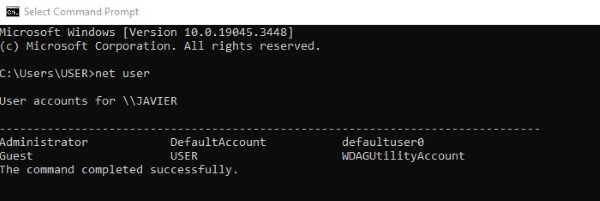
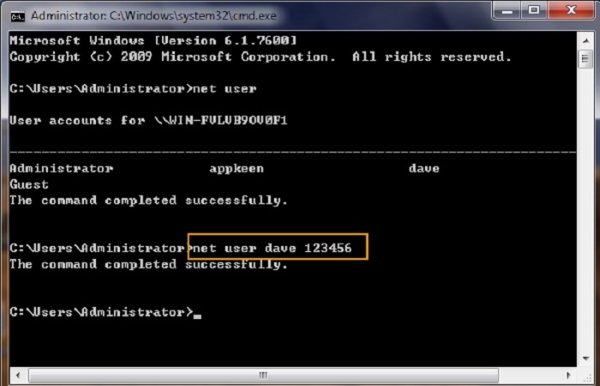
Step 1 Open CMD, type net user and hit Enter. This will show a list of user accounts, including the administrator account. Identify the administrator account for which you want to reset the password.
Step 2 Type the command net user (admin username) (new password) and hit Enter. Replace (admin username) with the administrator account's name and (new password) with the unique password you want to set—for example, net user Admin mynewpassword.
Step 3 You should see a message confirming that the command was completed successfully. Restart your computer and log in with the newly set password.
Part 3. How to Change Administrator Password from a Guest Account
Changing the administrator password in Windows 7 and 10 using CMD from a guest account presents a unique challenge. Guest accounts are intentionally limited to ensure system security. That means they do not have direct access to the CMD commands for changing admin passwords. Luckily, there's a workaround that involves utilizing a system file. Check the details to know more about this technique.
Warning: Using exploits or system files to bypass restrictions are highly risky. Such actions can compromise your system, result in permanent data loss, or violate legal regulations. Do not download or execute exploit files from unverified sources!
Step 1 To begin, you need to download the CVE-2017-0213_x64 file from this site https://github.com/SecWiki/windows-kernel-exploits/tree/master/CVE-2017-0213 and unzip it. This file contains the necessary components to initiate the password change process. With the unzipped file ready, navigate to the location where it's stored.
Step 2 Once you've located the file, double-click on it. This action will trigger a specific exploit in Windows that opens a new Command Prompt window with administrator privileges. You can proceed to change the administrator password.
Step 3 To do this, type in the following command: Replace USERNAME with the name of your administrator account and Password with the new password you want to set. After typing the command, press Enter. Windows will verify that the password has been changed successfully.
Part 4. Bonus Tip: Reset Administrator Password with Advanced Software
Using exploits to change administrator passwords is risky and may compromise your system. Is there a safer way to reset the administrator password? Yes! Tipard Windows Password Reset provides a safe and easy-to-use solution for unlocking a Windows computer when you've lost the administrator password.
This software allows you to create a bootable CD, DVD, or USB flash drive, which can be used to reset the password securely. It works with Windows 11, 10, 8, 7, and XP, making it compatible with most systems.
Key Features
- Supports most common hard disk types, including SATA, RAID, IDE, and SCSI.
- Offers multiple editions: Standard, Platinum, and Ultimate.
- Allows you to create or add a new administrator account, providing a backup option in case you forget your password.
Step 1 Grab the Password Administrator Reset Software
You must install the software on an accessible computer. Also, we recommend opting for the Ultimate Edition of the software to take advantage of all its features. To start, click the Free Download button downward and follow the setup window to install the software successfully.
Step 2 Modify Password Reset Method
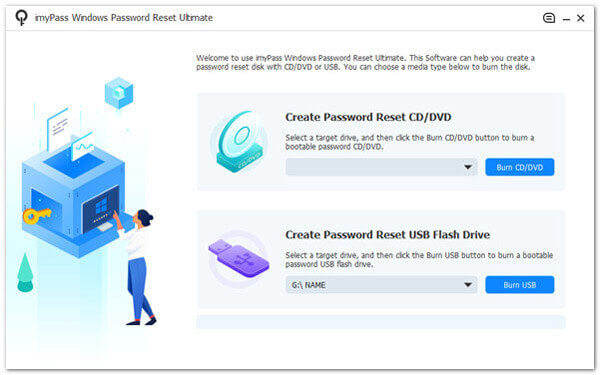
Once it ends, open the application and familiarize yourself with its interface. Afterward, select your preferred password resetting method from the main interface. Then, insert a password reset device, such as a USB drive, CD, or DVD. Next, choose the Create Password Reset CD/DVD or Create Password Reset USB Flash Drive option, according to your preference.
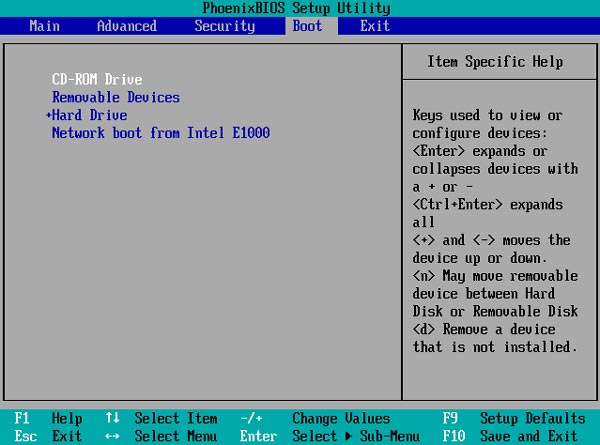
Step 3 Enter Boot Menu
Afterward, click the OK button to close the window. Eject the password reset device, then insert it into the computer you wish to unlock. Follow the computer's startup prompts to access the Setup Utility. Select CD-ROM Drive from the boot menu if you're using a CD or DVD. Alternatively, choose a Hard Drive using a USB drive.
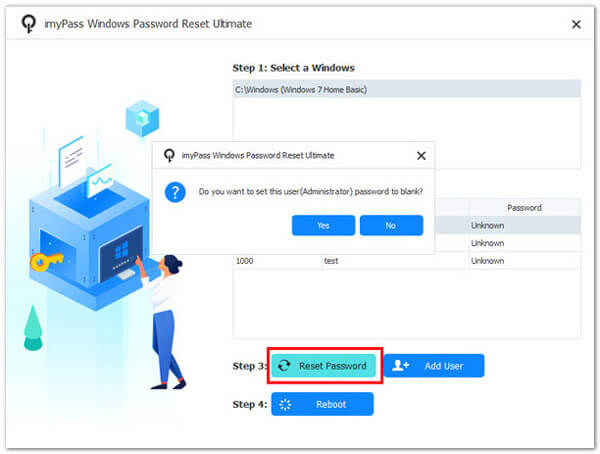
Step 4 Begin to Reset the Administrator Password
Afterward, all the user accounts associated with that Windows OS will be displayed. Choose an account, click Reset Password, and a new window will appear, asking you to confirm the process. Hit the OK option to verify the action.
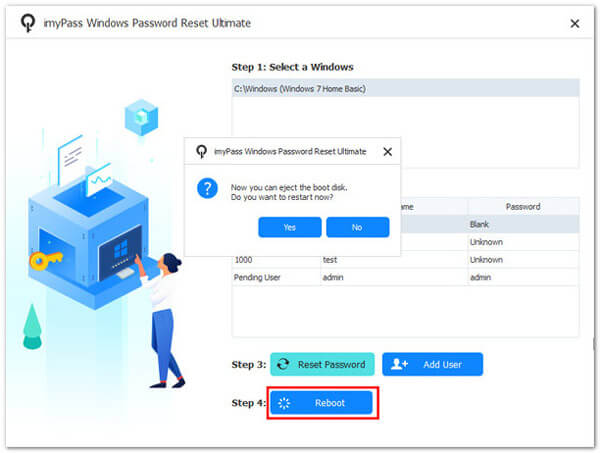
Step 5 Check and Access the Computer
Once complete, pull the bootable disk and restart your computer. You can now access your computer without needing an administrator password. This software provides an effective method for unlocking a desktop computer without a password. Moreover, you can learn how to login as administrator in Windows 7 to have another idea about Admin passwords.
Part 5. FAQs About Showing Administrator Password
Can I use Command Prompt (CMD) to show an administrator password?
No, you cannot directly reveal or display an administrator password using CMD or any legitimate means. Administrator passwords are securely encrypted; showing them is not standard or ethical practice.
How can I recover a forgotten administrator password?
You can recover a forgotten administrator password using authorized methods, such as resetting or changing the password through Windows, or by using trusted third-party recovery tools. These methods allow you to set a new password, but the original password cannot be retrieved.
Can I reveal an administrator password if I have physical access to the computer?
It's possible to reset or discover how to change an administrator on Windows 10 with physical access to the computer. However, revealing the existing password without authorization is not a standard practice and is against ethical guidelines.
Can I recover an administrator password without losing data?
You can recover an administrator password without losing data using legitimate methods like password reset disks or unlocker and recovery software. These methods do not result in data loss.
Is it legal to attempt to show the administrator's password without permission?
Attempting to show or recover an administrator password without proper authorization is often illegal and unethical. Such actions may breach security, violate privacy, and are subject to legal consequences. Always follow appropriate procedures and obtain the necessary permissions to recover or reset passwords.
Conclusion
In summary, knowing how to show administrator passwords using CMD is not a standard or ethical practice. Administrator passwords are intentionally secured to protect the integrity and security of computer systems. The focus should instead be on legitimate password recovery methods and resetting when necessary. When you forget your password, it's important to employ authorized procedures such as using software like Tipard Windows Password Reset. Also, ethical and legal considerations should guide our actions when dealing with password-related issues. Always prioritize the security, privacy, and ethical use of technology, adhering to best practices in maintaining system integrity.
More Reading


About the Author

 Click here to join the discussion and share your comments