

- Part 1. Overview of 7 MP4 to MOV Converters
- Part 2. The Best Way to Convert MP4 to MOV on Windows and Mac
- Part 3. Convert MP4 to MOV on Premiere Pro
- Part 4. Convert MP4 to MOV with QuickTime
- Part 5. Convert MP4 to MOV with Shutter Encoder
- Part 6. Convert MP4 to MOV Free Online
- Part 7. FAQs of Converting MP4 to MOV
Key Takeaways:
While MP4 is the universal standard for sharing, MOV is the gold standard for production. For anyone working within the Apple ecosystem or professional video editing suites, converting MP4 to MOV is often a technical necessity rather than a choice. Tipard Video Converter Ultimate support standard and high-quality MOV codecs, including ProRes 422, HQ, LT, and Proxy. It also supports 1080P, 3D, and 4k MOV profiles.
MP4 vs. MOV: Which is better for Apple ecosystem? While MP4 is a universal standard, converting MP4 to MOV is often the preferred choice for Apple users seeking a seamless post-production workflow. Since MOV is natively optimized for QuickTime Player and professional suites like Final Cut Pro, it offers superior stability and frame-accurate editing on iPhone, iPad, and Mac.
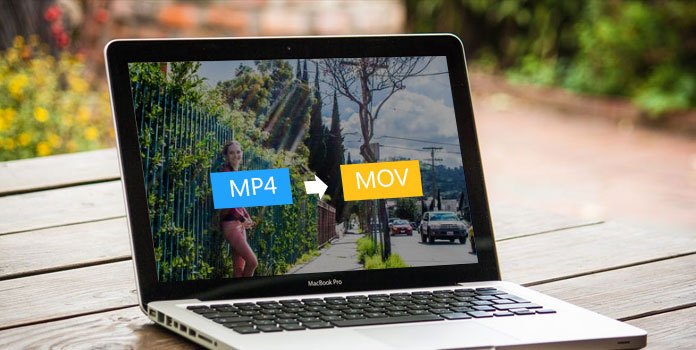
If you are working with high-bitrate footage or need to preserve transparency (Alpha Channel), switching to the MOV container ensures maximum compatibility with macOS system-level frameworks. Discover the 7 best MP4 to MOV converters below to maintain lossless video quality and enhance your creative efficiency.
- Part 1. Overview of 7 MP4 to MOV Converters
- Part 2. The Best Way to Convert MP4 to MOV on Windows and Mac
- Part 3. Convert MP4 to MOV on Premiere Pro
- Part 4. Convert MP4 to MOV with QuickTime
- Part 5. Convert MP4 to MOV with Shutter Encoder
- Part 6. Convert MP4 to MOV Free Online
- Part 7. FAQs of Converting MP4 to MOV
Part 1. Overview of 7 MP4 to MOV Converters
How can you convert MP4 to MOV? Before diving into detailed steps, you can check a brief comparison of the 7 ways to transform MP4 to MOV format. You can choose your desired one to learn about how to use it.
| Converter | Max Resolution | Bitrate Control | Hardware Acceleration | Batch Conversion | Lossless Copy |
|---|---|---|---|---|---|
| Tipard Video Converter Ultimate | 8K Ultra HD | Smart Variable & Constant | NVIDIA/AMD/Intel/Apple Silicon (Full) | Multi-thread Parallel | Yes (High-Speed Mode) |
| Premiere Pro | 8K+ / RAW | Full Manual Control | Native Silicon/GPU Opt. | Queue-based (Media Encoder) | No (Requires Rendering) |
| QuickTime | Up to 4K | No | Yes; but no multi-core GPU acceleration | No | No |
| Shutter Encoder | 8K / Custom | Command-line precision | Partial (OS dependent) | Sequential / Batch | Yes (Rewrapping) |
| CloudConvert | Usually up to 4K | Limited Presets | Server-side (No local speed) | One-by-one (Free tier) | No |
| Convertio | Up to 4K | Yes (Constant Quality) | Server-side (No local speed) | Support | No |
| FreeConvert | Only original resolution | No | No | Support | No |
| Show MoreShow Less | |||||
Part 2. The Best Way to Convert MP4 to MOV on Windows and Mac
Tipard Video Converter Ultimate is the finest choice for turning MP4 to QuickTime format on Mac and Windows. It is renowned worldwide as the ultimate converter that offers a quick, efficient, and secure conversion process.
You can quickly convert multiple MP4 videos to MOV format using specialized Apple-device presets designed for seamless integration with the iOS and macOS ecosystems. Unlike basic tools, Tipard grants you absolute authority over your output, allowing you to freely adjust bitrates and upscale to large resolutions (up to 4K/8K) for crystal-clear clarity.
Leveraging advanced Level-3 Hardware Acceleration, it not only changes the MP4 video format to MOV but also automatically adjusts the video and audio codecs to best suit the MOV container at lightning speed. Whether you are a pro editor or a casual viewer, you can edit or play video smoothly with the best quality.

- Convert MP4 to MOV in batch with AI upscaling.
- Offer many commmon and standard MOV presets for Apple devices.
- Support full GPU acceleration to enhance conversion speed.
- Allow you to highly increase the MOV video frame rate, bitrate, and channels.

How to Convert MP4 to MOV with Tipard Video Converter Ultimate
Step 1Import MP4 File
Download and install Tipard Video Converter Ultimate on your Windows and Mac computer. Lunch it and then click the Add Files button on the top left side to import your MP4 videos to this MP4 to MOV converter.

Step 2Choose MOV Format
Click the Format button and then choose the MOV format. You can choose many resolutions such as 4K MOV. You can also choose a 3D video format.
Customization Options for Your MOV Video: You can click the Settings button (with a gear icon) to adjust the video codec. Unlike basic online tools, professional software like Tipard Video Converter Ultimate gives you granular control over the internal codec. You can switch from a compressed H.264 MP4 to a high-fidelity Apple ProRes MOV. This transition is the secret to a lag-free editing experience on Mac, as ProRes is designed for smooth timeline scrubbing and superior color retention.

Step 3Convert MP4 to MOV
Finally, you should click the drop down button in the Save to section to choose a destination folder to save your MOV video. Then, click the Convert All button to change MP4 to MOV format.

- Automatically set up the proper video and audio codecs.
- Support 4K and 3D MOV video formats.
- Keep the best video quality after the MP4 to MOV conversion.
- Offer necessary video editing tools like cropping, trimming, filters, etc.
- The interface can be improved.
MOV vs MP4: Although MP4 is more widely supported, MOV files can sometimes deliver better video quality, especially with high-resolution content like 4K, because MOV uses less compression, which can keep more detail. However, converting MP4 to MOV may typically increase the file size.
Part 3. Convert MP4 to MOV on Premiere Pro
Adobe Premiere Pro is the industry-leading multimedia editing software from Adobe Systems. You can use it to convert MP4 to MOV format easily. With a free version, you can add eye-catching effects, design animated titles, balance color, improve video quality on Premiere, and convert a video. Although it's a professional video editor that is difficult to master, it's quite easy to convert MP4 to MOV format with it. You can check the detailed guide below to do that easily. As mentioned above, with free version, you can convert MP4 to QuickTime MOV for free on it.
Main Features of Premiere Pro:
- Convert MP4 to origial MOV and ProRes formats.
- Support 10-bit and 12-bit color depth output for MOV.
- Batch convert multiple MP4 files to MOV with multi-core processing.
- Provide smart AI upscaling and metadata embedding.
How to Convert MP4 to MOV on Premiere Pro
Step 1 Launch Premiere Pro and click the File button in the top left corner, and then click the Import button to import your MP4 video to this powerful MP4 to MOV converter.
Step 2 You can see your MP4 video is added on the bottom left side. However, you cannot start editing or converting your video until you drag and drop it to the timeline area on the right side of your imported video.

Step 3 Then, you should choose the Export tab to start converting MP4 to MOV. Click the Format dropdown button to choose QuickTime, which is also MOV. Finally, click the Export button in the bottom right side of Premiere Pro to easily convert MP4 to MOV format.

- It offers rich video and audio codecs for you to choose from.
- It provides powerful and rich video editing features.
- Offer free version for you to quickly convert MP4 to MOV.
- Beginners cannot find the MOV format easily.
- You should manually set up video and audio codecs for MOV.
Part 4. Convert MP4 to MOV with QuickTime
QuickTime Player, built into every Mac computer, is a versatile multimedia tool beyond simple playback. It can also help you convert MP4 to MOV format. QuickTime allows seamless conversion and provides basic video editing features like trimming, cropping, and adjustments. So, if you are using a Mac, why not directly convert MP4 to MOV with your QuickTime Player? You can check the steps below to explore how to do that.
Main Features of QuickTime Player:
- SUpport native macOS intergration to output the most compatible MOV file.
- Provide HEVC codec for efficient conversion.
- Offer basiv video trimming and editing features.
How to Convert MP4 to MOV with QuickTime
Step 1 Choose your MP4 video and play it with QuickTime Player. You can also launch QuickTime Player and then open your MP4 file.
Step 2 When your video is playing, you should click the File button on the top ribbon, and then select Export. Then, you can choose a desired resolution to convert MP4 to MOV format because the output format is set as MOV by default.

Sometimes, QuickTime Player may not work properly because of macOS bugs or a corrupted installation. You can try other methods in this article to convert MP4 to QuickTime MOV.
- It's quite easy and fast to convert MP4 to MOV format.
- QuickTime Player is free and built-in on Mac computers.
- Support multiple video presets.
- You cannot adjust the video and audio codecs.
- No other video editing features.
Part 5. Convert MP4 to MOV with Shutter Encoder
If you pursue a free method to convert MP4 to QuickTime video on Windows, macOS, and even Linux, Shutter Encoder is your best choice. It's a totally free and open-source video converter. You can easily change MP4 to MOV format with the original codecs or change the codecs. It supports H.264 and HEVC codecs for the MOV format. If you want to convert MP4 to QuickTime for free while keeping a reliable file converter on your computer, Shutter Encoder is really worth it.
Main Features of Shutter Encoder:
- Support lossless rewrapping and high customization for re-encoding.
- Offer totally authority over the video bitrate.
- Support full GPU acceleration to fasten the conversion process.
- Let you adjust color space and support LUT.
How to Convert MP4 to MOV with Shutter Encoder
Step 1 Launch Shutter Encoder and click the Browse button to add your MP4 video to this program.

Step 2 This is the most important step. Click the Choose function button. In the list, you can choose Rewrap, which means change the container from MP4 to MOV but not change the video codecs inside. Here, you can also choose a codec like H.265.

Step 3 Finally, choose .mov as the output format and click the Start function button to convert .mov to .mp4 easily. If you want to try other editing features, you can locate the right side of the program where you can see color-grading, cropping, video/audio settings, etc.

- Let you change the container or video codec.
- Support HEVC and H.264 codecs for MOV format.
- Offer some video editing features.
- It's difficult for beginners to figure out the conversion choices.
- MP4 to MOV conversion is too customizable, which may cause your file to be less compatible.
Part 6. Convert MP4 to MOV Free Online
If you don't want any installation, you can try many free online approaches to convert MP4 to MOV format. With a stable internet connection and fast speed, you can also quickly convert MP4 to MOV. However, you'd better choose an online tool that won't show many ads. You can check 3 excellent .mp4 to .mov online converters below.
1. CloudConvert
CloudConvert is a popular choice for converting MP4 to MOV free online because it works with any web browser. Also, unlike other online converters, CloudConvert does not require a login for the conversion service. Though it is an online tool, its conversion quality is unparalleled. You can also change the video and audio codecs during .mp4 to .mov conversion.
Step 1 Go to the official CloudConvert website and click the Select Files button to upload your MP4 video to this online converter.
Step 2 When your MP4 video is uploaded, click the dropdown button in the Convert to section to select the MOV format. You can also click the Settings button to adjust the video codec, resolution, frame rate, and many other settings.
Step 3 Finally, click the Convert button to start converting MP4 to MOV. It will take some time to process your video. After that, you can download the MOV video to your computer.

- It's free and has no ad.
- Support many high-quality video codecs.
- The customization feature is difficult for beginners.
- Conversion fails when codecs are not compatible with the format.
2. Convertio
Convertio is also a popular online file converter tool. It also lets you adjust the video and audio codecs before the MP4 to MOV conversion. Its interface also looks like CloudConvert. There's no annoying ad pop-up on its web pages. Therefore, just feel free to use Convertio to convert MP4 to MOV format online.
Step 1 Go to the official website of Convertio and click the Choose Files button to upload your MP4 files to this online MP4 to MOV converter.
Step 2 Click the dropdown button to choose MOV as the output format. You can also click the Settings button to adjust the video and audio settings. Fortunately, this MP4 to MOV converter will only show codecs that match the format.
Step 3 Click the Convert button to convert .mp4 to .mov format. Then, you can download your MOV video to your computer.

- Quickly convert MP4 to MOV free online.
- There's no ad pop-up.
- Correctly offer codec options.
- It's not a free MP4 to MOV converter.
3. FreeConvert
FreeConvert is also a powerful online MP4 to MOV converter. It supports many formats and codecs. You can select high-quality video and audio codecs for your MOV format. However, you may encounter conversion failure because of unmatched codecs. Therefore, you can leave out the video settings but only choose the MOV format. Check how to easily change MP4 to MOV with this online tool.
Step 1 Go to FreeConvert official website and click the Choose Files button to upload your MP4 video to this online tool.
Step 2 Click the Output dropdown button to select the MOV format. Then, click the Convert button to convert MP4 to MOV format free online.

- Support high-end video and audio quality to present excellent quality.
- Offer extra video and audio editing features.
- It's a totally free MP4 to MOV converter.
- There are too many ads on its web pages.
- It shows codecs that don't match the selected format.
Part 7. FAQs of Converting MP4 to MOV
Can I just rename MP4 to MOV?
MP4 and MOV are different containers. If an MP4 uses a codec, bitrate, or metadata schema unsupported by the MOV framework, simply renaming the extension will cause playback errors. A professional conversion is required to ensure internal stream compatibility.
How to convert MP4 to MOV in iPhone?
iPhone doesn't have a built-in video converter app. You can download an MP4 to MOV converter app from the App Store and do the conversion easily.
Is .MOV the same as MP4?
No, MOV and MP4 are not the same, though they are closely related. Think of them as two different suitcases (containers) that can hold the same type of clothes (video and audio data).
Conclusion
Transforming MP4 to MOV can be simple, especially in this fast and advanced technology era. Choosing a suitable MP4 to MOV converter is very important. Maybe you want an online converter because you want to do it quickly, but online converters may have many ads and greatly rely on internet speed and server conditions. You can try Tipard Video Converter Ultimate. This program can easily convert MP4 to MOV format and offer the most accurate codecs and fastest speed. You can get the best video and audio quality after conversion.
More Reading


About the Author

 Click here to join the discussion and share your comments