

- Part 1. M4V vs MP4 - Why You Need to Convert M4V to MP4
- Part 2. The Best Way to Convert M4V to MP4 on Windows and Mac
- Part 3. How to Convert M4V to MP4 with TunesKit
- Part 4. How to Convert M4V to MP4 with HandBrake
- Part 5. How to Convert M4V to MP4 with QuickTime
- Part 6. How to Convert M4V to MP4 with FFmpeg
- Part 7. How to Convert M4V to MP4 Online
- Part 8. FAQs about M4V to MP4
Key Takeaways:
M4V is a video format developed by Apple, primarily used for storing and playing videos in iTunes. It may have copy protection, so you need specific methods to convert it to MP4 format for wide compatibility with other devices. Tipard Video Converter Ultimate and Tuneskit can easily deal with the DRM and re-mux or transcode M4V to MP4 format.
"I had some videos in M4V format from my friend, but I cannot watch them on my Android phone. What are the differences between M4V and MP4? How to convert M4V to MP4?"
M4V is designed by Apple for seamlessly work with Apple OS, programs, and devices, like iTunes, macOS, Apple TV, etc. It is nearly identical to the MP4 format. However, you might not be able to play M4V videos on some Windows PCs, Android phones, or even game consoles. Why? You should learn more about the differences between M4V and MP4. Keep reading, and you can check six methods to convert M4V to MP4 with ease on Windows and Mac
- Part 1. M4V vs MP4 - Why You Need to Convert M4V to MP4
- Part 2. The Best Way to Convert M4V to MP4 on Windows and Mac
- Part 3. How to Convert M4V to MP4 with TunesKit
- Part 4. How to Convert M4V to MP4 with HandBrake
- Part 5. How to Convert M4V to MP4 with QuickTime
- Part 6. How to Convert M4V to MP4 with FFmpeg
- Part 7. How to Convert M4V to MP4 Online
- Part 8. FAQs about M4V to MP4
Part 1. M4V vs MP4 - Why You Need to Convert M4V to MP4
Although both M4V and MP4 are based on the MPEG-4 standard, they serve different purposes in the digital ecosystem:
Compatibility: MP4 is the industry standard, compatible with almost all smartphones (Android/iOS), smart TVs, and game consoles. M4V is Apple's proprietary container, primarily optimized for the Apple ecosystem (iPhone, iPad, Apple TV).
DRM Protection: Most M4V files purchased from the iTunes Store are encrypted with FairPlay DRM, restricting playback to authorized Apple devices. In contrast, MP4 is a universal, DRM-free format.
Technical DNA: When unencrypted, M4V is nearly identical to MP4. However, converting M4V to MP4 is the most effective way to bypass device restrictions and ensure your videos play anywhere.
Today, H.264, HEVC, and AV1 codecs are more popular than MPEG-4. It is very common to upgrade your M4V videos to MP4 format with those codecs. This article offers six ways to help you re-encode M4V to MP4 with or without DRM bypass. Some of them also support lossless remux, which means you can maintain the original video quality with the MPEG-4 codec. You can have a brief look at them first.
| Software | Best For | DRM Removal | Key Tech | Ease of Use |
|---|---|---|---|---|
| Tipard Video Converter Ultimate | Pro & Batch Users | Yes (Automatic) | AI Upscaling & AV1 | Ultra Easy |
| TunesKit | iTunes Library | Yes (Lossless) | Specialized Decrypt | Easy |
| HandBrake | Open Source Fans | No | HEVC/AV1 Presets | Moderate |
| FFmpeg | Developers | No | Command Line / Remux | Hard |
| QuickTime | Basic Mac Users | No | Native Apple Silicon | Easy |
| CloudConvert | Occasional Use | No | Web-Based Simplicity | Easy |
| Show MoreShow Less | ||||
Part 2. The Best Way to Convert M4V to MP4 on Windows and Mac
What is the easiest way to convert .m4v to .mp4. on Windows and Mac? You should use Tipard Video Converter Ultimate. It supports almost all video and audio encoders. No matter what kinds of M4V files you have, this M4V to MP4 converter can perform the conversion and even use AI upscaling to enhance the video to 4K resolutions. You can also choose HEVC, AV1, and ProRes video codecs to highly reduce the file size while maintaining the video quality.

- Convert M4V to MP4 format with multiple modern codec choices for better compatibility.
- Bypass copyright DRM protection on M4V video files automatically.
- Provide AI upscaling and enhancement tools to optimize your output videos.
- Convert M4V videos to MP4 in batch or merge M4V videos into one MP4 video.

How to Convert M4V to MP4 on Windows/Mac
Step 1 Download and install the M4V to MP4 converter, launch the program on your computer. Select Converter section as default. Then click the Add Files button to import all M4V files that you want to convert. You can playback the M4V videos within the built-in video player directly.
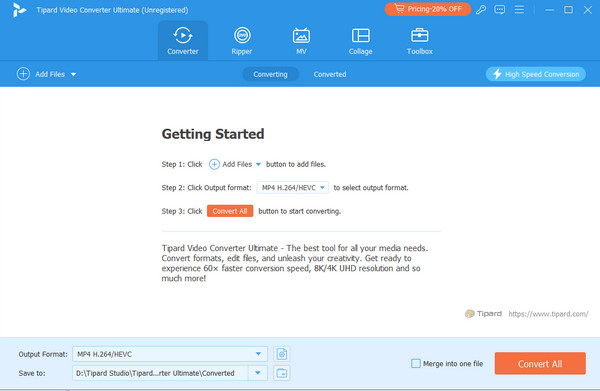
Step 2 Since you want to convert M4V to MP4, just click the Output Format dropdown button or the Format button on the right side of your video to choose a desired MP4 format with your preferred encoder. Moreover, you can also click the Settings button to adjust the video and audio encoders, video resolution, frame rate, audio channels, bitrate and other settings for the output MP4.

Step 3 After that, you can click on the drop-down button at bottom left and select a specific folder to save the output files. Now, you only need to click the Convert All button to start converting M4V to MP4 easily on Windows or Mac.

If you want to convert multiple M4V to one MP4 videos, just select the Merge into one file option next to the Convert All button.
Part 3. How to Convert M4V to MP4 with TunesKit
How can you bypass Apple's FairPlay encryption on M4V files? You should use specific programs like TunesKit. When you need to convert iTunes M4V files to MP4, you inevitably need to bypass the copy encryption. You can check the detailed guide below to learn how to convert iTunes M4V to MP4 with TunesKit.
How to Convert iTunes M4V to MP4 File
Step 1 Launch TunesKit on your computer and click the Library button to add iTunes M4V videos that has DRM encryption.

Step 2 Click the Format button on the bottom left side. Since you want to convert M4V to MP4, just select the MP4 format here. You can also adjust the video and audio encoders, video resolution, frame rate, and other settings. Finally, click the Convert button on the bottom right corner to convert iTunes M4V videos to MP4 format.

Part 4. How to Convert M4V to MP4 with HandBrake
HandBrake is an open-source and free M4V to MP4 converter. It is available for Windows, Mac and Linux users to convert limited output formats, luckily including MP4, without using extra plugins or codecs. Moreover, you can use Handbrake to rip Blu-ray. But, you should know that there's no library file that can convert iTunes M4V videos to MP4 together with HandBrake. You can use HandBrake to convert simple M4V videos to MP4 format.
How to Convert M4V Video to MP4 in HandBrake
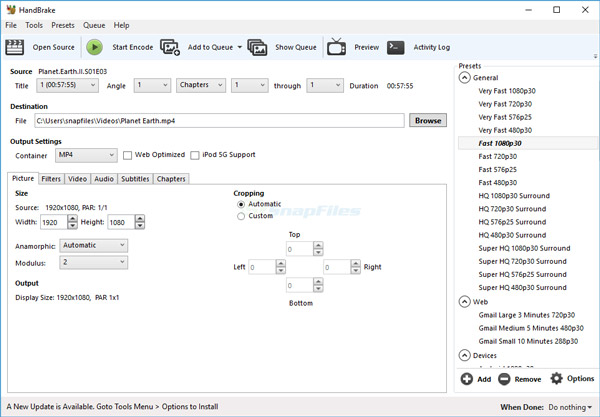
Step 1 Once you have installed Handbrake, you can launch this free M4V to MP4 converter on your computer. Click the Source button to add your M4V video.
Step 2 Your M4V video is added. You can see the output format is set as MP4 by default. You can also tweak the settings, such as video and audio encoders, resolution, frame rate, and more. Choose the destination folder under Destination by clicking the Browse button.
Step 3 After that, you can click the Start Encode button on the top menu bar to start converting M4V to MP4 with HandBrake.
Part 5. How to Convert M4V to MP4 with QuickTime
QuickTime is not only able to play M4V video files, but also enables you to convert M4V files to MP4. It is a default program on your MacBook that you can even use the freeware without installation. Also, it cannot convert encrypted M4V videos from iTunes. Anyway, check how to convert M4V to MP4 on MacBook with QuickTime.
How to Convert M4V to MP4 with QuickTime
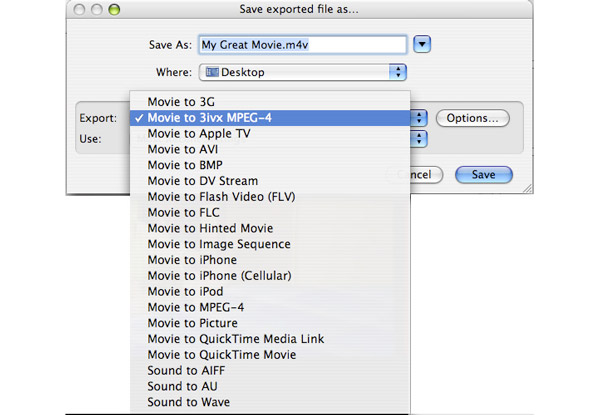
Step 1 Go to the folder stored the M4V file and right-click on the video, select Open With, and select QuickTime.
Step 2 Click the File button at the top. Then, click the Export button. Here, you can select a desired resolution, like 720p or 1080p.
Step 3 Enter the filename for the MP4 file. Then, click the Save button to convert M4V to MP4. Unfortunately, QuickTime cannot process multiple M4V files in batch.
Part 6. How to Convert M4V to MP4 with FFmpeg
FFmpeg is another open-source and free M4V converter that works on Windows, Mac, and Linux. However, FFmpeg uses command lines to do all the conversion stuff. If you are a big new to the command line, you may feel confused when you check this approach. However, suppose you know a little about the command line, it's not difficult to use FFmpeg to convert M4V to MP4. Just check the steps below.
How to Convert M4V to MP4 in FFmpeg
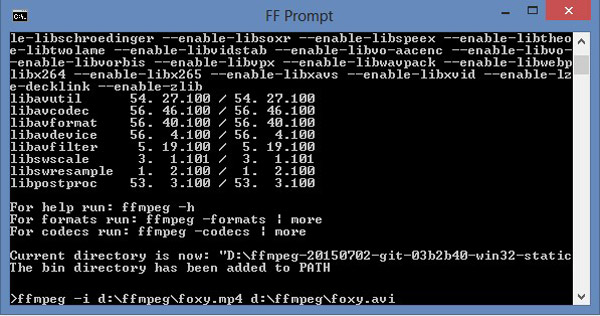
Step 1 Download and install FFmpeg on your computer. Put the ffmpeg.exe file in the same folder as your M4V video.
Step 2 Then, type cmd in the file folder search box and press the Enter key on your keyboard. Command Prompt will launch.
Step 3 Input the following command:
ffmpeg -i input.m4v -c copy output.mp4
Then, press the Enter key on your keyboard to convert M4V to MP4 using FFmpeg easily. This command can convert M4V videos to MP4 quickly and losslessly, keeping the original video codec, bitrate, resolution, and more parameters.
Part 7. How to Convert M4V to MP4 Online
Of course, you can also use an online M4V to MP4 converter, which enables you to convert the video files without DRM protection. Generally those online M4V to MP4 converters don't requires a payment or subscription if you only have few M4V videos in small size. Check how you can convert M4V to MP4 with CloudConvert.
How to Convert M4V to MP4 in CloudConvert
Step 1 Go to the CloudConvert official website and click the Select File button to upload M4V videos from your computer to this online M4V to MP4 converter.
Step 2 Click the Convert to dropdown button to select MP4 as the output format. You can also click the Settings button to adjust the encoders, resolution, frame rate, and many other video and audio settings.
Step 3 Click the Convert button to convert M4V to MP4 free online.

Part 8. FAQs about M4V to MP4
Is there a free M4V to MP4 converter for Mac?
Yes, you can download Kigo M4V converter for Mac to convert M4V to MP4 for free. This free M4V converter allows you to convert multiple M4V files at the same time.
Can I convert M4V to MP4 with VLC?
Yes, you can. VLC is able to convert M4V videos to MP4 format. However, it also cannot convert iTunes M4V videos with encryption to the MP4 format.
Is M4V an outdated video format?
Yes, M4V is getting outdated. Although M4V is developed by Apple, Apple devices and programs are getting to abandon this video format. On the contrary, the MP4 format is increasingly becoming the default format in the Apple ecosystem.
Conclusion
Here are M4V to MP4 converters on Windows and Mac. As for an encrypted video file format, the M4V format is not compatible with Android phones and popular media players. As for this case, you have to convert M4V to MP4. Tipard Video Converter Ultimate is the best choice if you want to convert the M4V files with DRM protection.
More Reading

About the Author

 Click here to join the discussion and share your comments
 Tipard Video Converter Ultimate